Before Linking OneLapFit to Strava - Important Checks
Before you link your OneLapFit account to Strava, confirm the following:
1. Confirm you are logged into the correct Strava account
On your phone:
- Open the Strava app
- Confirm you are logged into your own Strava account
- Ensure you are not logged into someone else’s account
This is a common cause of incorrect uploads and failed authorizations.
2. Confirm your latest activities have uploaded to OneLapFit
On your phone:
- Open the OneLapFit app
- Tap Profile (bottom right)
- Open Activities
- Check that your latest rides appear
If your activities are missing, follow the next step.
3. Re‑upload missing data from the bike computer to OneLapFit
In the OneLapFit app:
- Go to Device
- Select your bike computer
- Open General Settings
- Tap Data Retransmission
- Under Data Re‑upload, select the date range
- Tap OK
This forces the device to resend any missing ride data to your OneLapFit profile.
4. Now link OneLapFit to Strava
Once your data is correct and your Strava account is confirmed:
- Go to the Profile tab
- Select Authorized Apps
- Tap Strava
- Follow the on‑screen login process
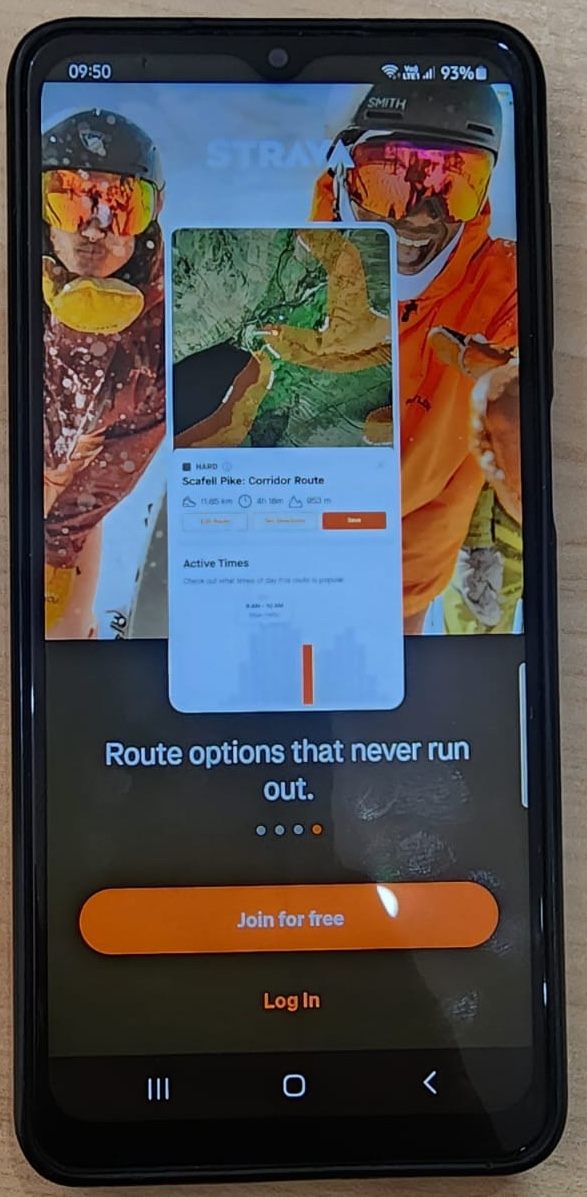
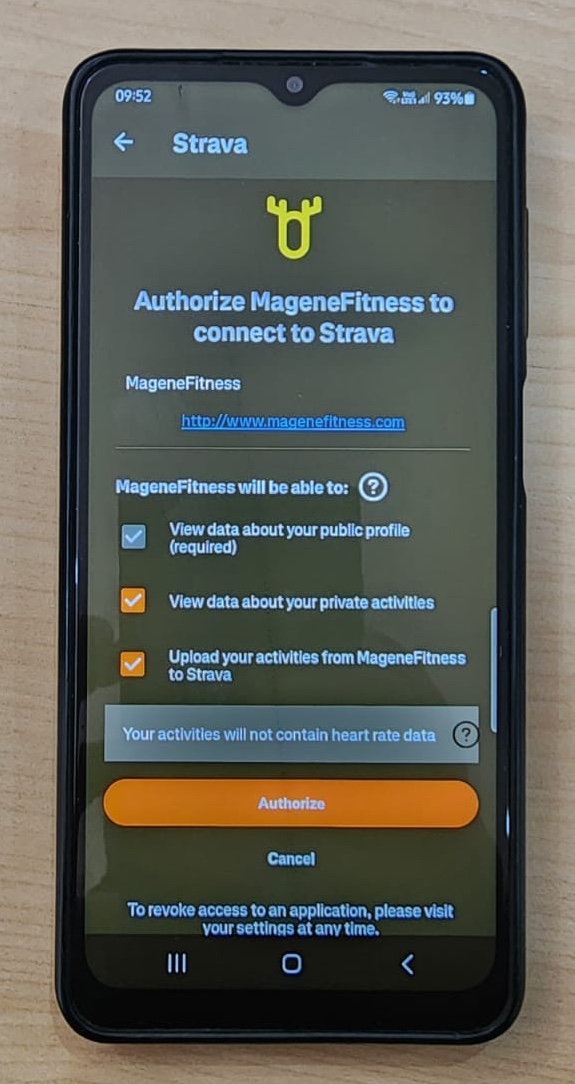
- Log into your correct Strava account
- Authorize MageneFitness to connect to Strava
- Ensure Auto Upload is turned ON
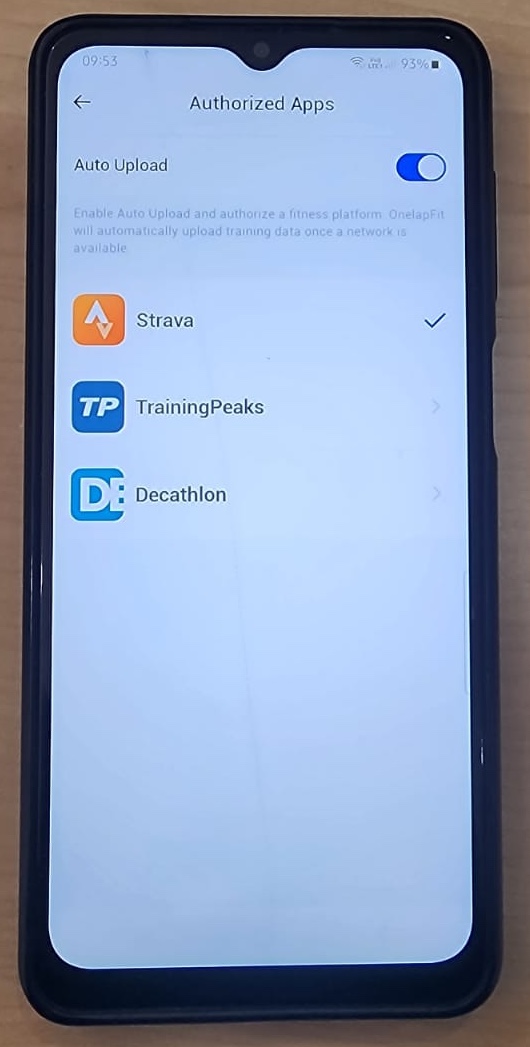
Your OneLapFit account is now properly linked to Strava.
Was this article helpful?
That’s Great!
Thank you for your feedback
Sorry! We couldn't be helpful
Thank you for your feedback
Feedback sent
We appreciate your effort and will try to fix the article