Why Do We Add or Remove a Sensor?
We add or remove sensors on the Magene C606v2 and C706 for several reasons:
- We have bought a new sensor to replace an old or faulty one
- A sensor has stopped working or is giving incorrect data
- The bike computer is picking up the wrong sensor (common in group rides or shops)
- A sensor is not detected or stuck on “Connecting”
- A power meter is only showing one side
- Duplicate sensors appear in the list
- We need to switch between different bikes or setups
- A customer upgraded equipment (new power meter, new HR strap, new radar light, etc.)
SUPPORTED SENSOR TYPES
The Magene C606v2 and C706 can pair with the following sensors:
- Speed sensors
- Cadence sensors
- Combined speed/cadence sensors
- Power meter pedals (single‑sided or dual‑sided)
- Heart rate sensors (HR straps, optical HR armbands)
- Electronic shifting systems (Shimano Di2, SRAM AXS, Campagnolo EPS)
- Smart radar lights (e.g., Garmin Varia)
- Smart rear lights
- Smart trainers (ANT+ FE‑C)
- Any ANT+ or Bluetooth cycling sensor
ADDING SENSORS
Step 1 - Wake the sensor
- Spin wheel (speed)
- Spin crank (cadence)
- Rotate pedal (power meter)
- Wet HR strap electrodes
- Place both thumbs on the silver belt clips on the back of the HR sensor — this wakes it up
- Shift once (electronic shifting)
- Turn on smart radar/light
Sensors must be awake before scanning.
Step 2 - Ensure no Bluetooth interference
Before pairing a sensor:
- Move away from other riders
- Turn off Bluetooth on nearby phones
- Ensure no smartwatches or headsets are pairing
- Ensure no other bike computers are scanning
- Know your sensor’s ANT+ ID — this helps ensure you connect to your sensor
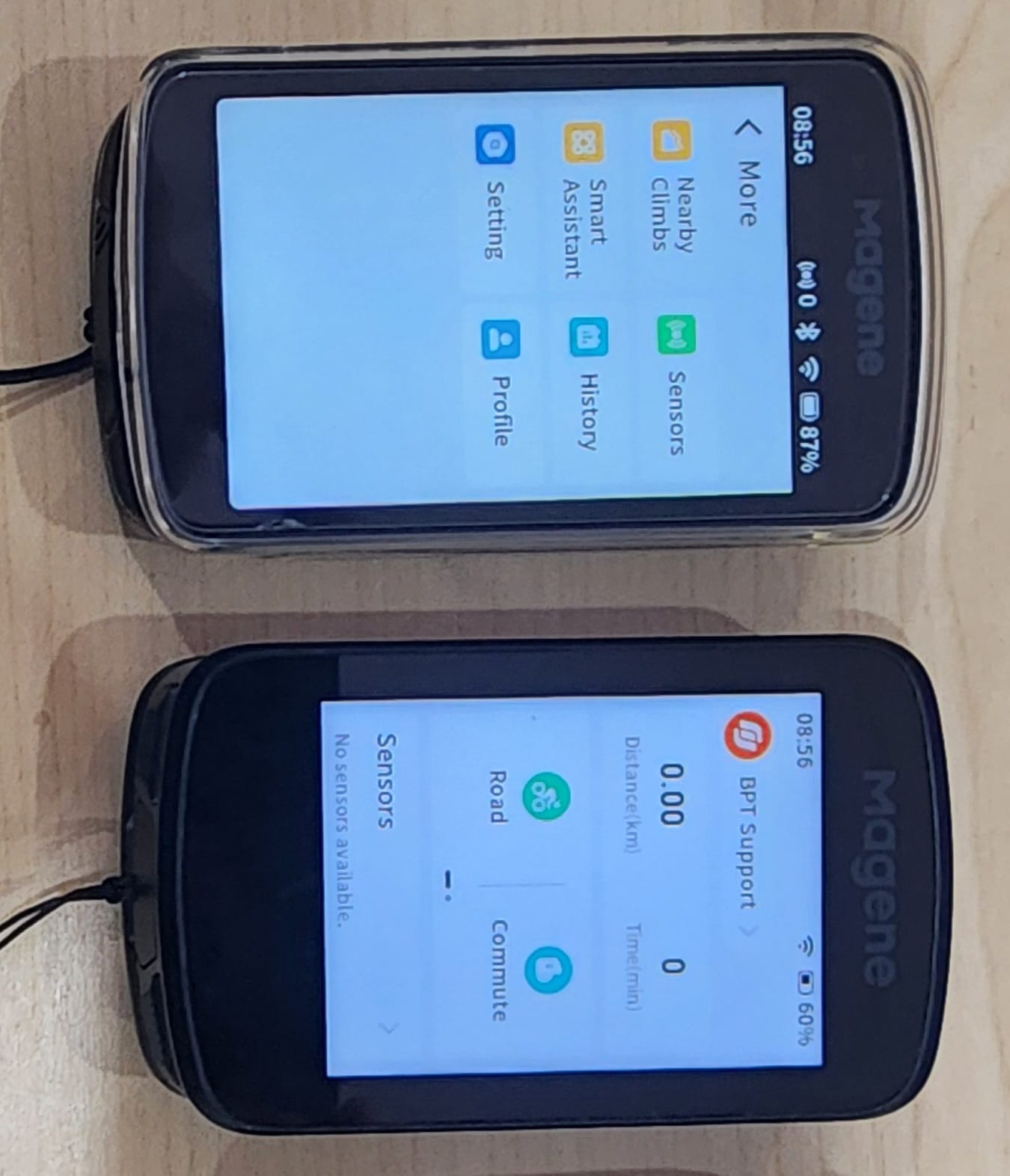
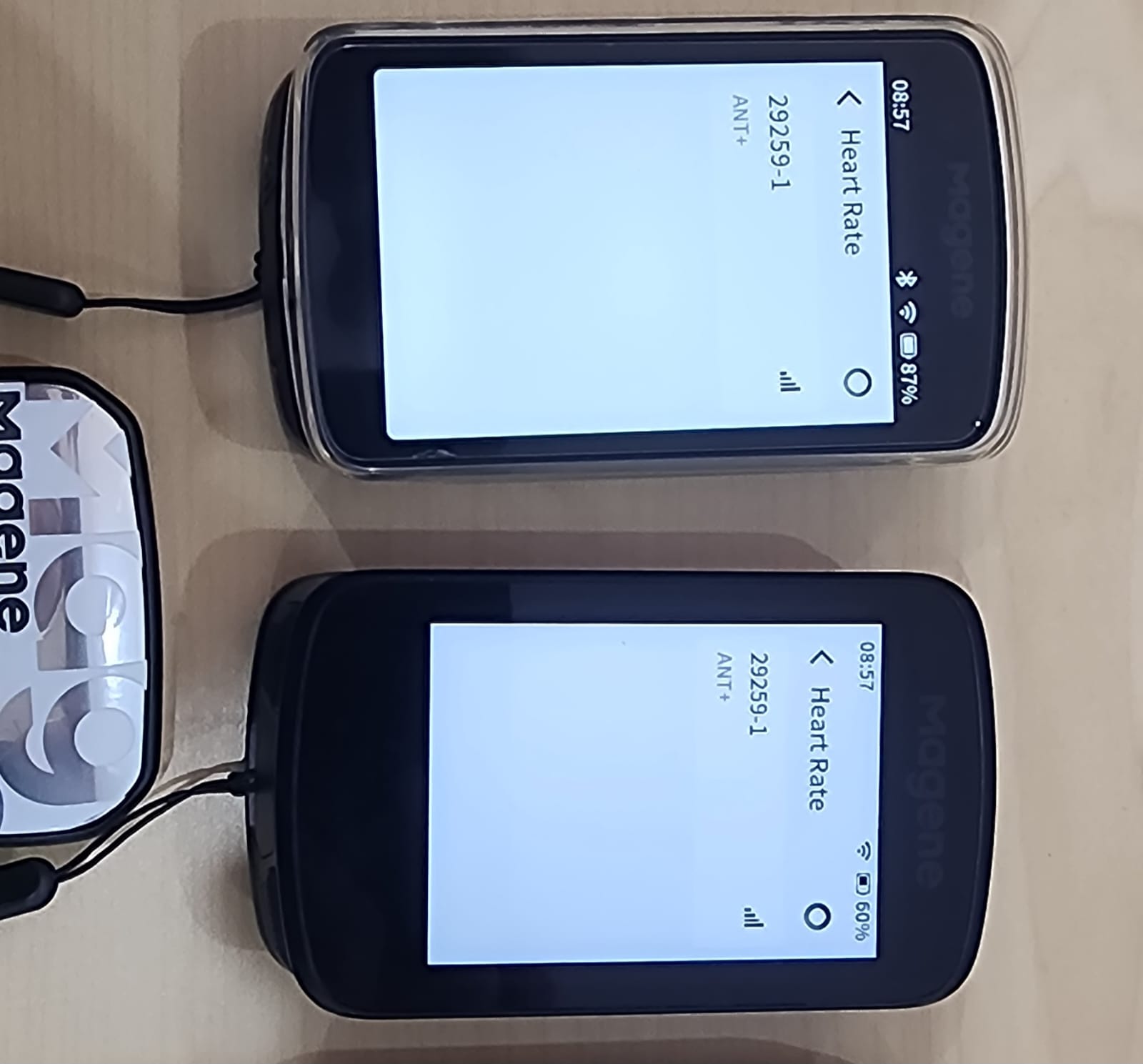
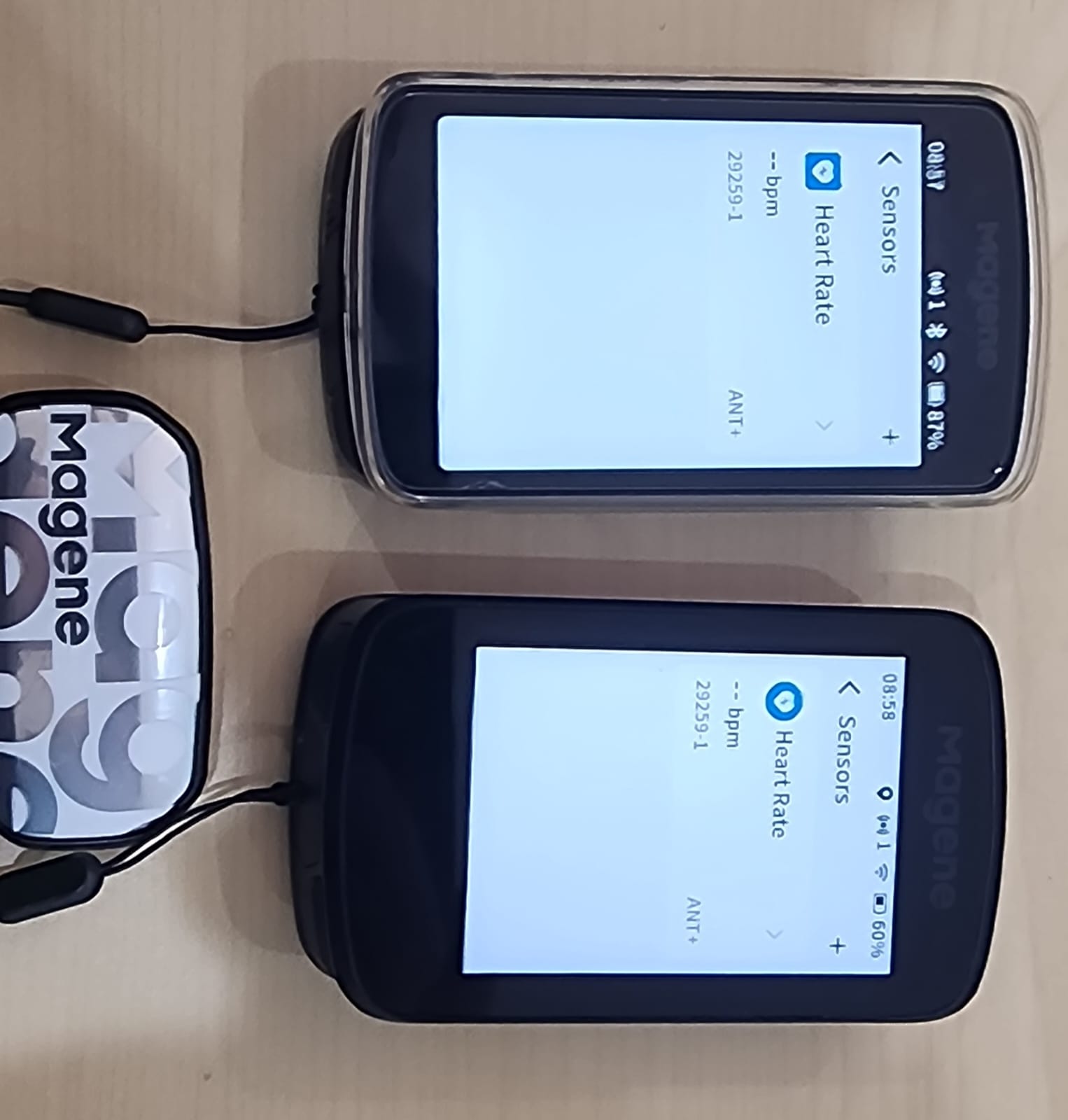
Step 3 - Add via the bike computer
- Go to Sensors → Add Sensor
- Select the correct sensor type
- Prefer ANT+ (more stable, supports multiple connections)
- If ANT+ fails → try Bluetooth
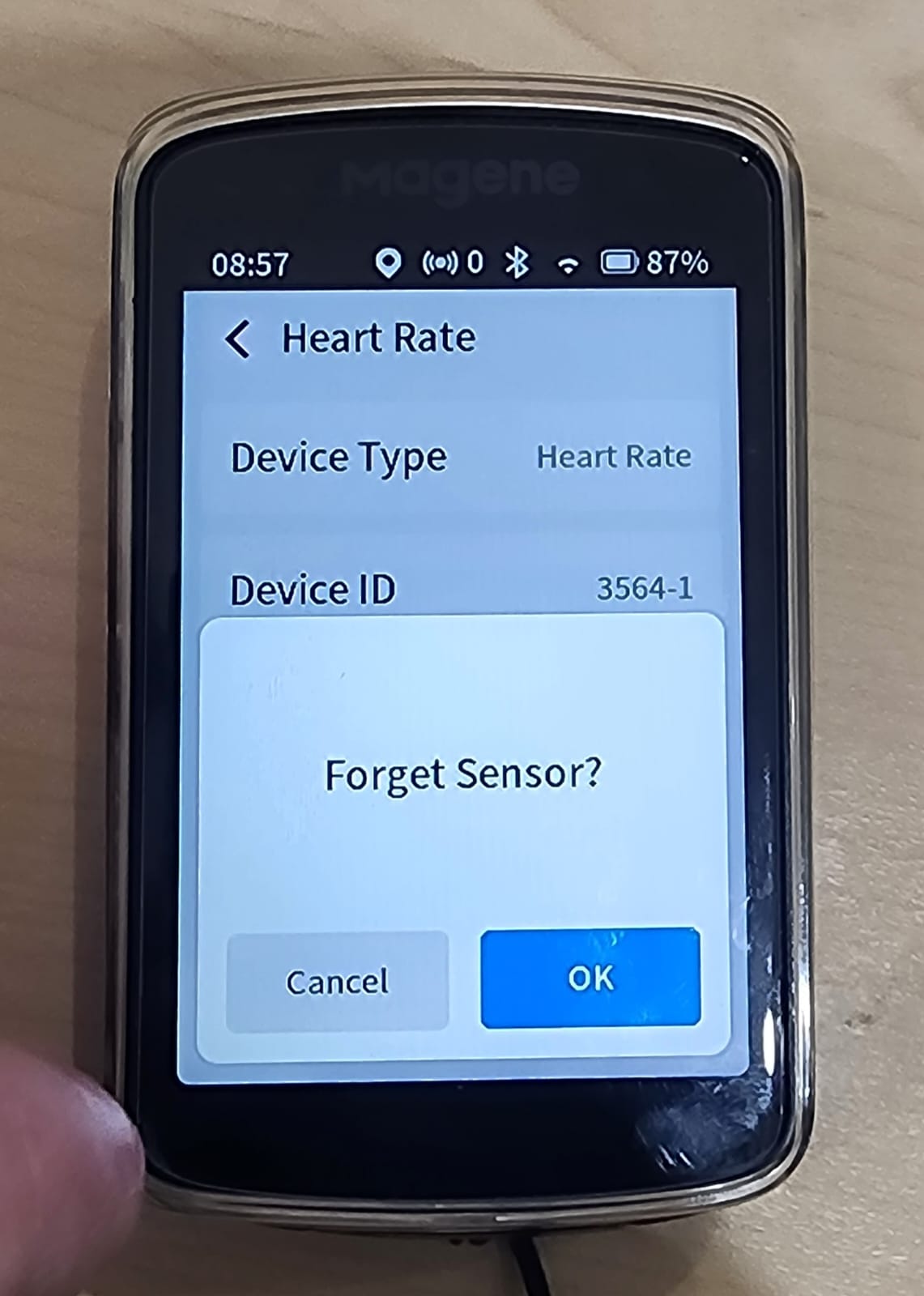
REMOVING SENSORS
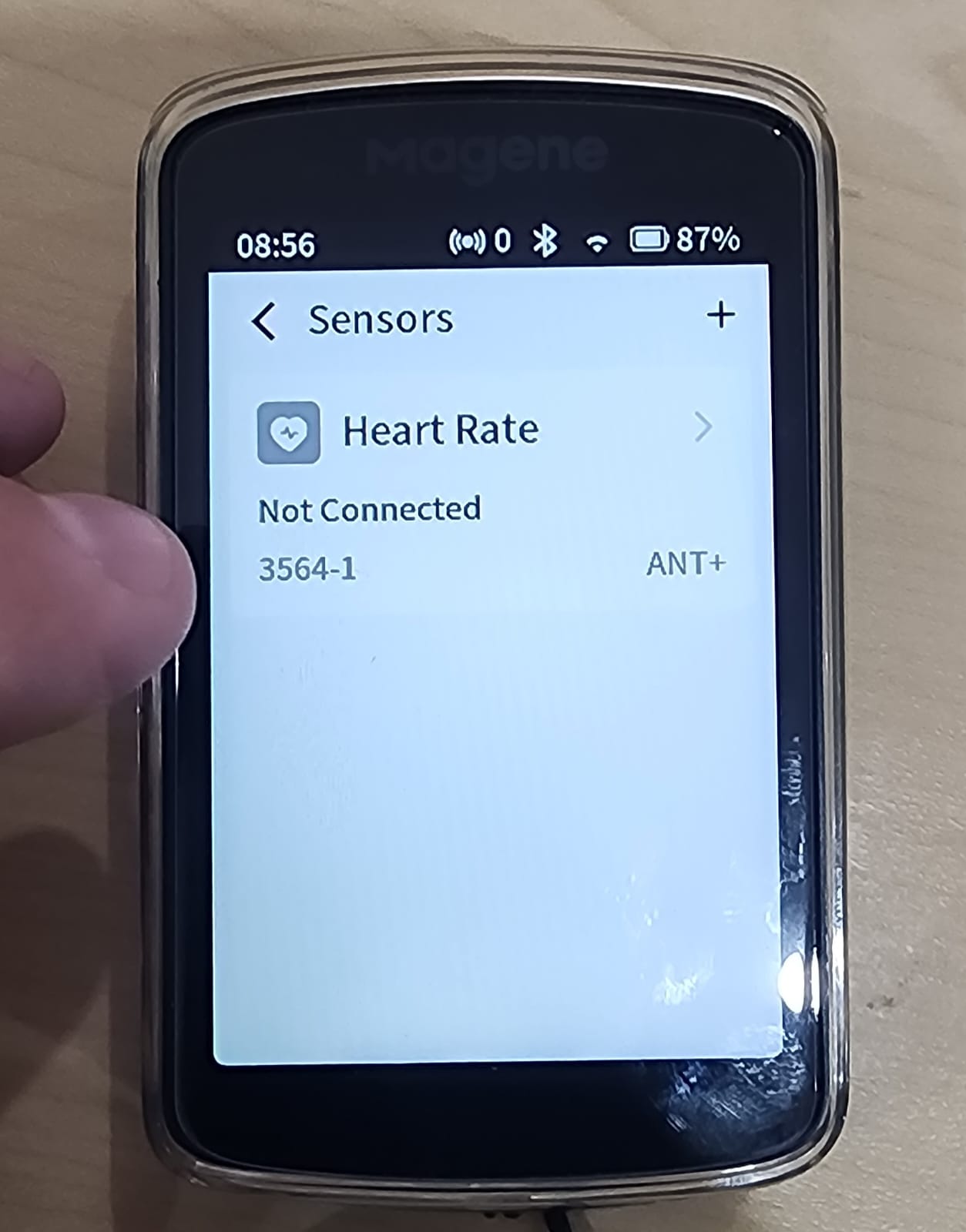
Step 1 - Remove from the bike computer
- Go to Sensors → Manage Sensors
- Select the sensor
- Tap Remove
Step 2 - Power cycle the bike computer
Since there is no Restart function:
- Power Off → wait 5 seconds → Power On
This refreshes the sensor list and clears active connections.
Was this article helpful?
That’s Great!
Thank you for your feedback
Sorry! We couldn't be helpful
Thank you for your feedback
Feedback sent
We appreciate your effort and will try to fix the article